Msgraph Onedrive Upload File
This connector is used to upload file to OneDrive
Non serverless mode - Upload to existed folder
Input
The input should be the object that follow next interface:
{
    file: base 64 string of the PDF,
    name: The file name(optional. When not provided, the current date is used as the file name),
    extension: Also optional. The connector expects a .pdf extention and will use that even if a different extension is provided.,
}
Settings
- (REQUIRED) Authentication: A valid office 365 credential item
- (REQUIRED) File Location: The existing folder in which you want to upload the file.
Output
{
  fileId: "01DEEE22XUQNRYYOJKHJGJOF3FMV23FHVM",
  success: boolean
}
Serverless mode
Old created actions are backward compatible with non-serverless. (You can use created non-serverless action in serverless mode) New actions created in serverless mode aren't backward compatible with non-serverless. (You won't be able to use action created in serverless mode with non-serverless action executor)
In serverless mode, you can either select an existing folder or use a dynamic location identifier which have to be provided.
Common Settings:
- (REQUIRED) Authentication: A valid office 365 credential item
- (REQUIRED) File Input: object from input that shoud follow next interface:
{
    file: base 64 string of the PDF,
    name: The file name(optional. When not provided, the current date is used as the file name),
    extension: Also optional. The connector expects a .pdf extention and will use that even if a different extension is provided.,
}
Upload to existed folder
- (REQUIRED) File Location: Click on refresh button on the right of the input. It'll load and list all existed folder. Select existing folder in which you want to upload the file.
Upload to dynamic created folder
In this case, you need to provide input data with a location id along with a file that follows the File interface described above For example your input may look like:
{
  locationId: folder location id given from somewhere (see How to section below)
  uploadFile: {
    file: base 64 string of the PDF,
    name: The file name(optional. When not provided, the current date is used as the file name),
    extension: Also optional. The connector expects a .pdf extension and will use that even if a different extension is provided.
  }
}
- (REQUIRED) File Location: Specify in which property your location id is stored. (In our example is locationId)
Edge cases:
- If provided object in
File Inputdoesn't match File interface the error will be thrown- Exception: Input itself corresponds to the interface (for backward compatibility with old action) Please do not pass plain object matching to File interface in input, put your loadable file object in any property and refer to it in
File Input)
- Exception: Input itself corresponds to the interface (for backward compatibility with old action) Please do not pass plain object matching to File interface in input, put your loadable file object in any property and refer to it in
How to work with Dynamic Folder:
- Obtain location id of the folder (It can be done when creating folder with One Drive Create Folder connector)
- Use
Object Helperconnector to combine your file and locationId to one same output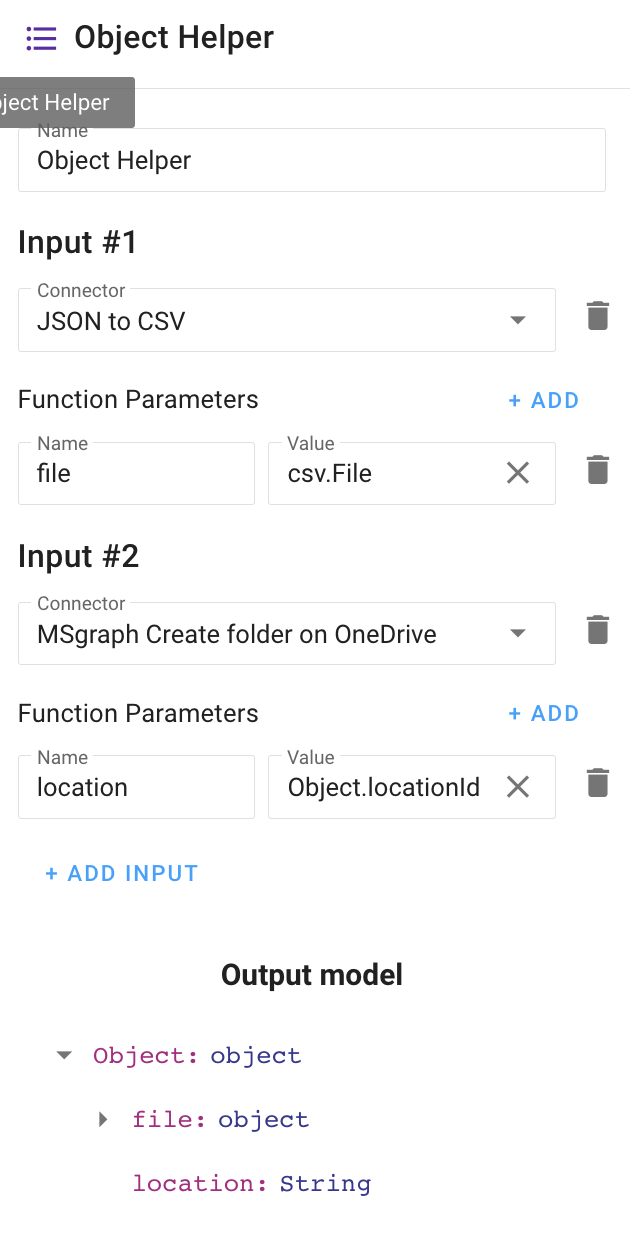
- Use output from
Object Helperfile as input forOne Drive Upload file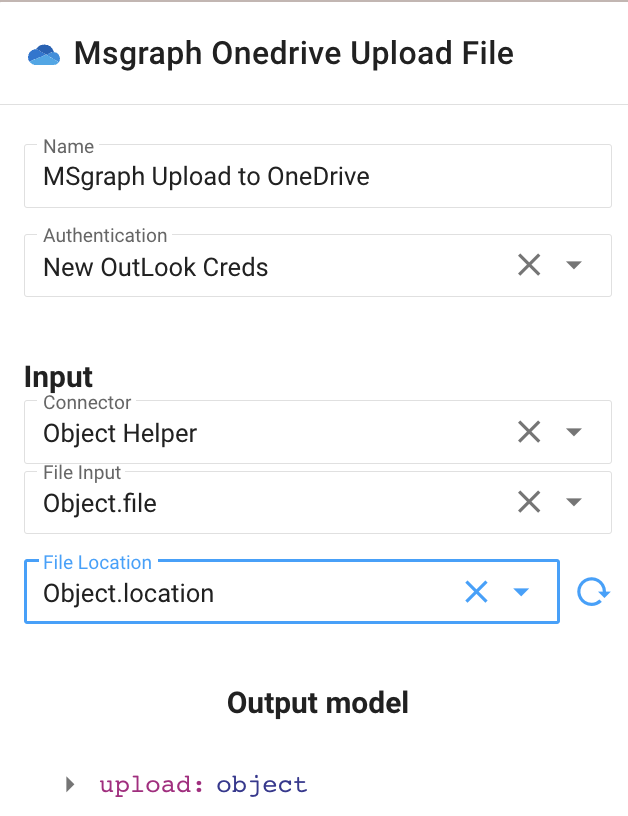
Example workflow: Upload to dynamic created folder